Pick any clip and VIBI separates the audio into voice, background, and per-speaker stems — so you can mute the wind, the passerby, or the wrong voice without ever touching the footage you can't reshoot.
iOS & Android apps in store review — live now in Adobe Premiere Pro 26+
interview_03.mov
One clip. Mute just what bothers you.
Separate the whole clip into each speaker and the background, then pick a region and mute just the noise. The voices are never compressed — the footage you can't reshoot is preserved.
V
Voice 1
Voice 1 — kept
V
Voice 2
Voice 2 — kept
B
Background
Background — muted
Two apps, one engine
Pick where you work.
The same separation, the same account, the same credits. Start on your phone where you shoot, finish in Premiere where you edit — your credits follow you across both.
VIBI for iPhone & Android
In store review
The quick fix, where you shoot.
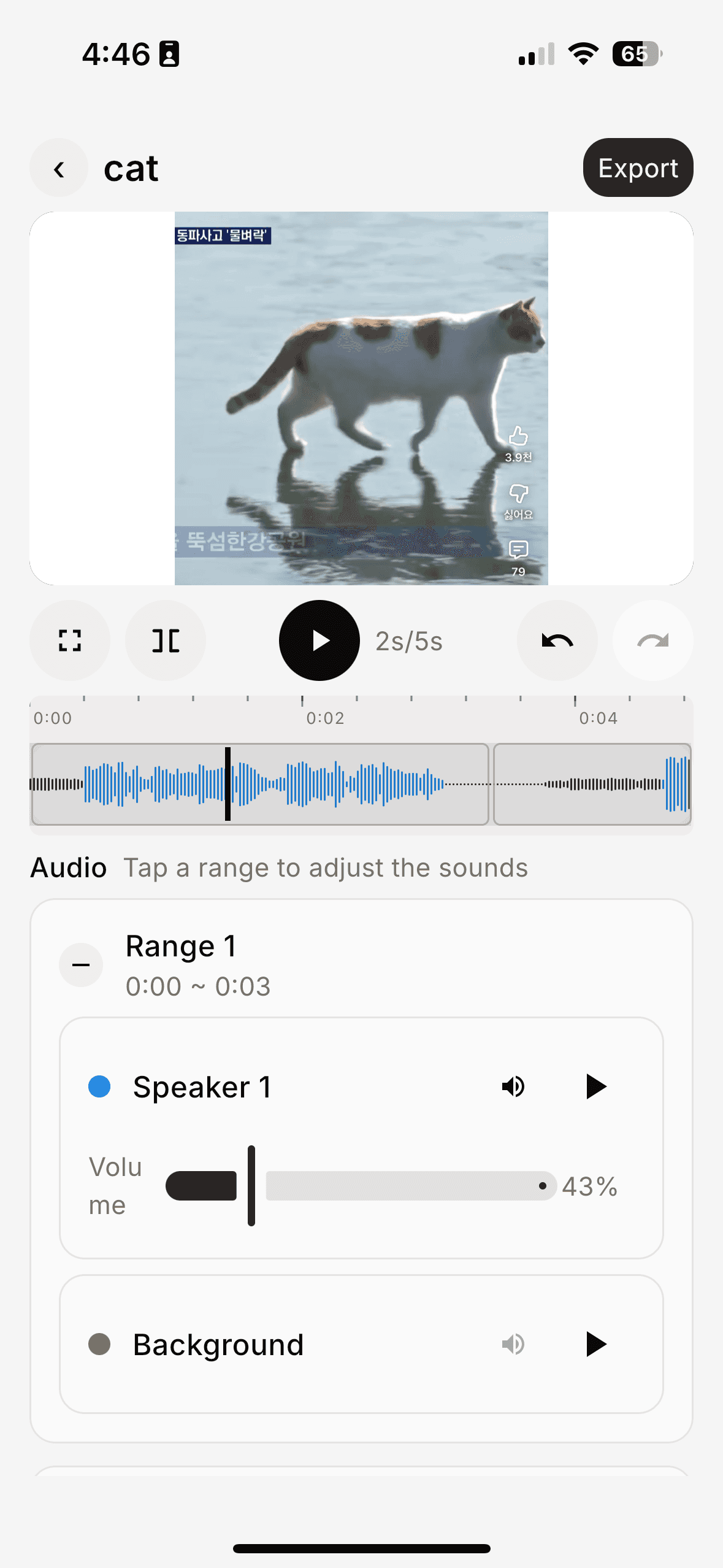
Pick a clip and the whole track separates. Split it into regions and mute, dim, or slow just the part that bothers you — done in under five minutes.
Read the timecoded, per-speaker transcript, reassign speakers, and regenerate the audio. Ride each stem with a dB fader, then mix a clean .wav back onto your timeline.
Stop crushing the whole track. Erase just what bothers you.
Most editors treat sound as one block — kill the noise, kill the voice with it. VIBI splits each clip into voice, background, and per-speaker stems so you can mute only the parts you don't want. Same engine on iPhone and in Premiere Pro.
Cut one speakerOther toolsNot possibleVIBIPick one of two in an interview
If audio is ruinedOther toolsRe-shoot or trash the clipVIBIKeep the footage, erase just the audio
Where you workOther toolsLocked to one workflowVIBIiPhone on location · Premiere Pro at the desk
Features
What you can do once it's split.
Region edits, BGM, captions, transcript-level control — every tool stands on the same voice / background / per-speaker separation.
Both apps
Whole-clip, per-speaker separation
Pick a clip and AI splits the entire track into voice, background, and per-speaker stems — the foundation everything else is built on, identical on iPhone and in Premiere Pro.
On iPhone
Adjust by region, on the go
Split the separated clip into regions and mute, dim, or slow just the part that bothers you. Layer in BGM or record from the mic, then export and share — done in under five minutes.
In Premiere Pro
Edit from the transcript
Work from a timecoded, per-speaker script: reassign speakers, fix who said what, regenerate the audio, ride each stem with a dB fader, then mix a clean .wav back onto your timeline.
How it works
Interview clip — one voice clean, the other gone.
The moment was too good to reshoot but a passerby ruined the audio. With VIBI, salvaging it takes under five minutes.
Before — the old way
1Get back to the desk, open the laptop
2Move the clip to PC (5–15 min)
3Search “how to remove a voice from a video”
4Try app after app, tutorial after tutorial — still stuck
5Give up; re-shoot or trash the clip
After — VIBI
1Pick the clip from your camera roll
2Separate the whole track — voice, background, per-speaker
3Drag the region where the passerby cut in
4Mute the speaker you don't want — yours stays
5Drop a BGM if needed → export → share
Workflow
What used to need a studio, now in two apps.
Whether you're on your phone on location or deep in Premiere at the desk — the moment doesn't get away.
01
Bring in the clip
The old way
Cable / iCloud / AirDrop · 5–15 min
VIBI
From your gallery on iPhone, or the Project panel in Premiere
02
Erase a noise
The old way
EQ + multiband + manual cuts — and voice often dies with it
VIBI
Separate, then mute the stem or region you don't want
03
Preview
The old way
Render, then play
VIBI
Play instantly — on the timeline or in the panel
04
Publish
The old way
Export → send → upload
VIBI
Share sheet on mobile, or a clean .wav back to your sequence
Two ways in. One clean cut.
Start on your phone where you shoot, finish in Premiere where you edit — your account and credits follow you across both.